Phone Snatch Theft: Settings to Turn On Before It Happens
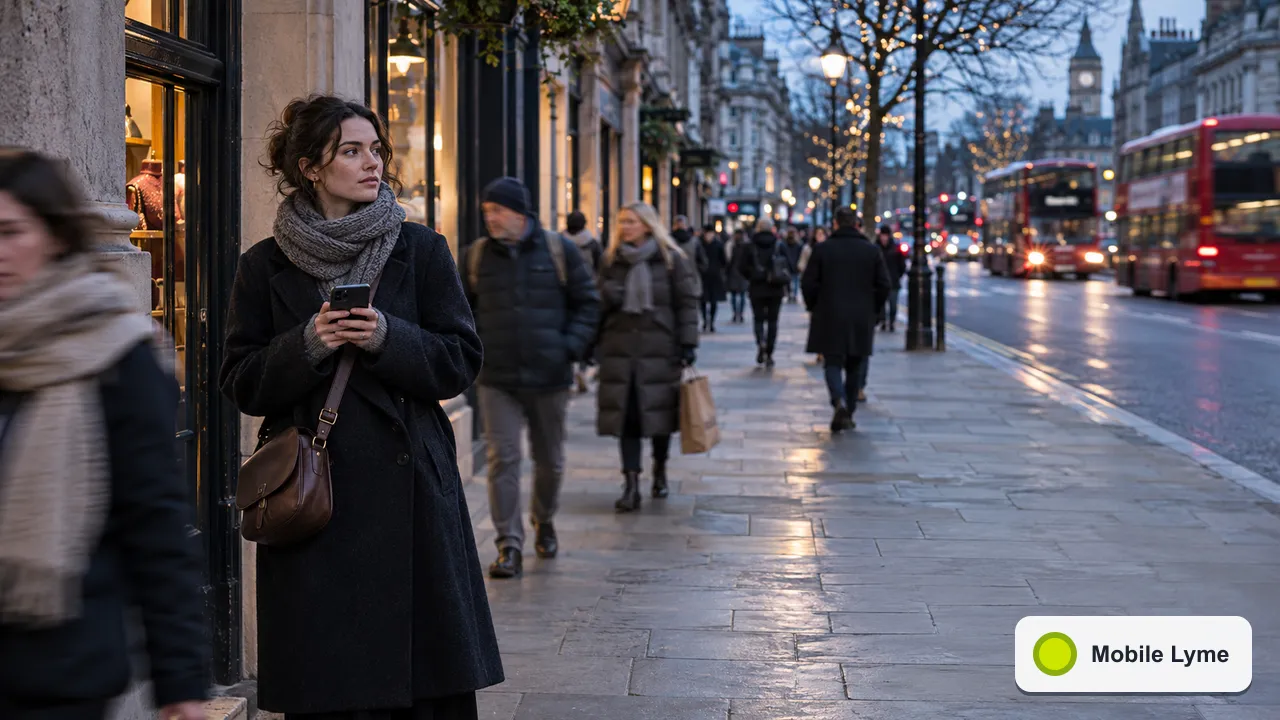
The settings that do most to protect you from a phone snatch have to be switched on before it happens: Stolen Device Protection on iPhone, and Theft Detection Lock, Offline Device Lock and Remote Lock on Android. Add a strong passcode and a habit of keeping the phone out of reach at the kerb, and a thief gets a locked handset rather than your bank and email accounts.
Phone snatching is most common in busy streets and stations, often by someone on a bike or scooter who grabs a phone that is being used at the roadside. The darker afternoons and crowded Christmas shopping streets of November and December make it a good time to check your settings. Here is what each feature does and how to turn it on.
Why the passcode matters more than the phone
A stolen handset is expensive to replace, but the bigger risk is what someone can do if they watched you type your passcode first. With the passcode, a thief may be able to change your account password, turn off tracking and get into saved passwords and payment details. The newer theft features are designed around that exact scenario.
Start with a longer passcode. Six digits is the minimum worth using, and an alphanumeric code is better. In public, use Face ID, Touch ID or your fingerprint instead of typing the code where others can see it.
iPhone: Stolen Device Protection
Apple's guide to Stolen Device Protection explains that when your iPhone is away from familiar places such as home or work, some actions need extra security:
- Using stored passwords and payment cards requires Face ID or Touch ID, with no passcode fallback.
- Some critical changes, including changing your Apple Account password, require a one-hour security delay followed by a second Face ID or Touch ID check.
The delay gives you time to mark the phone as lost and secure your account before a thief can lock you out. The feature needs iOS 17.3 or later, two-factor authentication on your Apple Account, a passcode, Face ID or Touch ID, Significant Locations and Find My. It may already be on, but check under Settings, Face ID & Passcode, Stolen Device Protection.
Apple also lets you require the security delay all the time, even at home. That is worth considering if you are worried about someone you live with, or if your "familiar" locations include a busy workplace.
Android: the theft protection settings
Google's theft protection help page lists several features, found under Settings, Google, All services, Theft protection on supported phones:
- Theft Detection Lock uses the phone's motion sensors, Wi-Fi and Bluetooth to spot when it has been grabbed and someone is running, cycling or driving away, then locks the screen automatically.
- Offline Device Lock locks the screen after the phone has been offline for a short time, which stops a thief simply switching off the connection to avoid being tracked.
- Failed authentication lock locks the phone after repeated failed unlock attempts.
- Remote Lock lets you lock the screen from android.com/lock using just your phone number, which is useful if you cannot remember your Google password in the moment. Google says you can add a security question so only you can trigger it.
If a setting is greyed out, your phone does not support it. Samsung and other manufacturers also offer their own theft features, so check the security section of your phone's settings as well.
Habits that make you a harder target
Settings limit the damage. A few habits make a snatch less likely in the first place:
- Step back from the kerb, or into a doorway, before you take your phone out to check a map or reply to a message.
- Be most careful outside stations and at crossings, where people stop and look down at their screens.
- Use earbuds for calls so the phone can stay in a zipped pocket or bag.
- A case with a wrist strap or a crossbody lanyard makes the phone harder to pull away. Our phone case guide covers the options.
- Turn off lock-screen previews for messages, so codes and bank alerts do not show without unlocking.
Lending your phone to a stranger to "make a quick call" is another route to a theft. Our piece on lending your phone with clear boundaries covers how to do it more safely if you want to help someone.
If your phone is snatched
Act quickly, ideally from a friend's phone or a computer:
- Mark it as lost. Use Find My on iCloud.com for an iPhone, or Remote Lock and Find Hub for Android.
- Call your network to block the SIM, so nobody can receive your text message codes, and ask them to block the handset using its IMEI.
- Change your key passwords, starting with your email account, because that is the route to resetting everything else.
- Contact your bank if banking or payment apps were on the phone.
- Report it to the police and get a crime reference number, which your insurer will need.
Do not try to chase or confront the person who took it. A phone can be replaced; the location shown in a tracking app is for the police to act on.
Before you replace it
Once your new phone is set up, restore from your backup and switch the theft settings on again straight away. On iPhone, Stolen Device Protection is carried over when you restore or transfer from a previous iPhone, though Apple notes it can take a while to relearn your familiar locations. If you are buying a second-hand replacement, ask the seller to show the phone is signed out of their account before you pay. Our guide to refurbished phones explains why.
More from Mobile Lyme
- Smartphones
Setting Up a Child's First Smartphone for Christmas
Create their account, link it to yours and agree a few rules before the phone is wrapped.
- Smartphones
Before You Trade In or Sell Your Old Phone: A Wipe Checklist
Back up, transfer, sign out and only then erase, so the phone is not locked to your account.
- Smartphones
Black Friday Phone Deals 2026: Working Out the Real Total Cost
Add up the full term, including the April rises, before you compare contract and SIM-free offers.